How to Make Pixel Art: A Beginner's Guide
Pixel art is one of the most accessible forms of digital art. You don't need expensive software, years of training, or a graphics tablet. All you need is a grid, some colors, and patience. Let's get started.
📋 Contents
✨ What Is Pixel Art?
Pixel art is a form of digital art where images are created and edited at the individual pixel level. Unlike other digital art forms where you paint with brushes, blend with gradients, or manipulate vectors, pixel art requires you to place every single dot deliberately.
Think of it like a mosaic: each tile (pixel) is a conscious choice. The magic happens when those individual squares combine to form characters, landscapes, and animations that feel alive despite — or because of — their visible grid structure.
Pixel art is not just "low-resolution art." A blurry downscaled photograph isn't pixel art. What makes pixel art special is intentionality: the artist chose the exact position and color of every pixel. This handcrafted quality is what gives pixel art its charm and why AI-generated "pixel art" feels hollow to practitioners.
Pixel Art vs. Low-Res Art
Pixel art: Each pixel deliberately placed. Clean edges. Intentional dithering. Hand-crafted.
Low-res art: High-res image downscaled. Blurry edges. Accidental artifacts. Machine-processed.
The difference: Intent. A pixel artist controls every dot. That's the whole point.
🛠️ The Best Pixel Art Tools
The right tool makes pixel art a joy. The wrong tool makes it a nightmare. Here are the best options for every budget:
Free Tools
Piskel
The best way to start immediately. Piskel runs in your browser — no download needed. It supports animation, has a clean interface, and exports to PNG, GIF, and sprite sheets. Perfect for beginners who want to try pixel art without commitment.
Lospec Pixel Editor
Another browser-based option with a focus on color palettes. Lospec also hosts an incredible library of curated pixel art palettes, making it a dual-purpose resource for colors and creation.
GIMP
The GNU Image Manipulation Program isn't designed for pixel art, but with the right settings (pencil tool, no anti-aliasing, zoom to grid), it works well. Best for people who already know GIMP and don't want to learn a new tool.
GraphicsGale
A dedicated pixel art tool that was paid software until 2017. Built-in animation timeline, onion skinning, and palette management. Windows only, but excellent if that's your platform.
Paid Tools
Aseprite ⭐ Community Favorite
The industry standard. Used by the developers of Celeste, Dead Cells, and hundreds of other indie games. Animation timeline, onion skinning, tilemap mode, scripting support, palette management, and the best pixel-specific tools in any software. This is what most professional pixel artists use.
Pyxel Edit
Excellent for tilemap-based pixel art. If you're making game levels, tilesets, or repeating patterns, Pyxel Edit's tile mode is unmatched. Also great for general pixel art with a clean, intuitive interface.
Pro Motion NG
Used by AAA studios for pixel art. Features like color cycling animation (a retro technique for animating waterfalls and fire using palette rotation) make this tool unique. Overkill for beginners, but powerful for professionals.
Our recommendation for beginners: Start with Piskel in your browser. If you get hooked (you will), upgrade to Aseprite. The $20 investment pays for itself in minutes.
📐 Pixel Art Fundamentals
Before placing a single pixel, understand these core concepts:
Canvas Size
Bigger is not better in pixel art. Common canvas sizes:
- 16×16 — Icons, small items, tiles
- 32×32 — Characters, objects (the sweet spot for beginners)
- 64×64 — Detailed characters, large objects
- 128×128 — Portraits, complex scenes
- 320×180 — Full scene (16:9 ratio, common for game screens)
Start small. 32×32 is perfect for your first sprites. You can always go bigger once you've mastered the fundamentals.
Lines & Curves
Drawing clean lines on a pixel grid requires understanding "jaggies" (the staircase effect on diagonal lines). The key principle: consistent pixel runs.
The Rule of Consistent Runs
A smooth pixel line has consistent "runs" — the number of pixels before each step.
Good line: 3-3-3-3-3 (three pixels, step, three pixels, step...)
Bad line: 3-1-4-2-3 (random runs = jagged and ugly)
Think of it like stairs: even steps feel smooth, uneven steps feel broken.
Anti-Aliasing (AA)
Anti-aliasing in pixel art means manually placing intermediate-color pixels along edges to smooth jaggies. Unlike automatic AA in regular graphics software, pixel art AA is done by hand, pixel by pixel.
Beginners should skip AA at first. Get comfortable with clean, aliased lines before attempting to smooth them. Bad AA looks worse than no AA.
Dithering
Dithering is a technique for creating the illusion of more colors by arranging two colors in a checkerboard pattern. From a distance, your eye blends them into an intermediate shade.
Common dithering patterns:
- Checkerboard — The classic 50/50 alternating pattern
- Gradient dithering — Gradually transitioning from dense to sparse dots
- Stylized dithering — Using patterns (diagonal lines, crosses) for texture
Dithering was essential when palettes were limited to 4–16 colors. Today it's an aesthetic choice, but it remains one of pixel art's most distinctive techniques.
🎯 Your First Sprite: Step-by-Step
Let's create a simple character sprite. We'll work at 32×32 pixels with a 4-color palette (keeping it simple).
Set Up Your Canvas
Open Piskel (or your tool of choice). Create a new sprite at 32×32 pixels. Turn on the grid overlay so you can see individual pixels. Zoom in until each pixel is clearly visible — you should be working at 400–800% zoom.
Choose a Limited Palette
Start with just 4 colors: a dark outline color (near-black), a base color (for the body), a lighter shade (for highlights), and one accent color (for details like eyes or accessories). Limiting colors forces you to be creative and prevents the "too many colors" trap that catches beginners.
Block Out the Silhouette
Using your outline color, draw the basic shape of your character. Don't worry about details — just establish the silhouette. A good pixel art character should be recognizable from its silhouette alone. Is it clearly a person? An animal? A robot? If you can't tell, simplify.
Fill in Base Colors
Fill the interior with your base color. Keep it flat — no shading yet. This is where your character starts to feel real. Check the silhouette: does it read well? If something looks off, adjust the outline now before adding detail.
Add Shading & Highlights
Pick a consistent light direction (top-left is traditional). Add your lighter shade to surfaces facing the light. Add darker areas below chins, under arms, and on the underside of objects. Keep shading simple — with only one light and dark shade, you have to be strategic.
Add Details & Polish
Add eyes, buttons, accessories with your accent color. Clean up any messy pixels — at this scale, one misplaced pixel is noticeable. Zoom out frequently to see how the sprite looks at actual size. A common mistake is making something look great zoomed in but unreadable at 1x.
💡 Pro tip: Your first sprite will look bad. Your second will look slightly less bad. Your tenth will look decent. Your hundredth will look good. Pixel art is a skill like any other — it improves with practice. Don't judge yourself by your first attempt.
🌈 Mastering Color Palettes
Color is where pixel art lives or dies. A great palette can make simple sprites sing; a bad palette can ruin technically perfect work.
Color Theory for Pixel Art
- Hue shifting — When creating shadows, don't just darken a color. Shift the hue toward blue/purple for cool shadows, or toward red/orange for warm shadows. A green character's shadow shouldn't be dark green — it should be dark teal or dark blue-green. This adds richness that straight darkening can't achieve.
- Limited palettes create cohesion — Working with 8–16 colors forces every element to share colors, creating visual harmony automatically. When everything shares the same palette, the image feels unified.
- Contrast is king — Make sure your important elements (characters, interactive objects) have strong contrast against the background. If your character blends into the environment, no amount of detail will save it.
Great Palette Resources
Lospec Palette List
The definitive collection of pixel art palettes. Browse thousands of curated palettes sorted by color count, popularity, and tag. Essential bookmark for any pixel artist.
Classic Palettes to Study
- NES palette (54 colors) — The constraints that built Mario and Zelda
- Game Boy (4 shades of green) — Extreme limitation, maximum creativity
- PICO-8 (16 colors) — The modern fantasy console palette, beloved by indie devs
- Endesga 32 — A community-favorite 32-color palette that covers every use case
- DB32 (DawnBringer 32) — Another classic 32-color palette with beautiful warm and cool tones
🎬 Basic Animation
Pixel art animation follows the same principles as traditional animation, but the grid adds unique constraints and opportunities.
Walk Cycle (The Pixel Art Rite of Passage)
Every pixel artist eventually creates a walk cycle. It's the "Hello World" of pixel animation. A basic walk cycle needs 4–6 frames:
- Contact — Front foot touches ground, legs spread
- Down — Body at lowest point, front leg bent
- Passing — Legs pass each other, body at mid-height
- Up — Back leg pushes off, body at highest point
- Repeat mirrored for the other leg
Onion skinning (showing the previous frame as a transparent overlay) is essential for smooth animation. Every good pixel art tool supports it.
Sub-pixel Animation
One of pixel art animation's unique tricks. Since you can't move a sprite half a pixel, you can create the illusion of sub-pixel movement by shifting colors. Place a lighter pixel ahead of the movement direction and a darker pixel behind it. The eye interprets this as smooth motion even though no pixel actually moved less than one position.
Squash & Stretch
The fundamental animation principle works brilliantly in pixel art. A bouncing ball that squashes on impact and stretches in the air looks far more alive than one that maintains a rigid shape. At small pixel sizes, even 1–2 pixels of squash/stretch makes a dramatic difference.
💎 Pro Tips From the Community
🏆 Wisdom from Working Pixel Artists
- "Zoom out constantly." — Your pixel art will be viewed at 1x scale. If it doesn't read well at actual size, it doesn't work, no matter how pretty it looks zoomed in.
- "Steal palettes, not sprites." — Using a proven palette is learning, not cheating. Study what colors the masters used.
- "Single-pixel outlines are your friend." — A consistent 1-pixel outline around characters makes them readable against any background.
- "Avoid pillow shading." — Placing light at the center with dark edges (like a pillow) looks flat and wrong. Always pick a consistent light direction.
- "Study game sprites, not pixel art illustrations." — Game sprites need to read at small sizes during motion. They're designed for function AND beauty. That discipline makes you better.
- "Do daily pixel art challenges." — Follow pixel art challenge prompts on social media. A 16×16 sprite a day for a month will teach you more than any tutorial.
Common Beginner Mistakes
- Too many colors — Start with 4–8 colors. Expand only when you can justify each addition.
- Canvas too large — 32×32 is plenty. A 256×256 sprite is overwhelming for a beginner.
- Using anti-aliased tools — Make sure your pencil/brush has no smoothing, feathering, or anti-aliasing. Every pixel should be a solid, flat color.
- Ignoring silhouette — If the shape doesn't read without color, adding color won't fix it.
- Never zooming out — Working at 800% zoom and never checking 1x is like painting a mural with your face pressed against the wall.
🕹️ Get Inspired: Play Pixel Art Games
The best way to learn pixel art is to study it in action. Playing pixel art games trains your eye to notice techniques — how characters are animated, how environments use color, how UI elements communicate information through minimal pixels.
Our games at PixelArtNerds are built with these principles. Each one is a mini lesson in pixel art design:
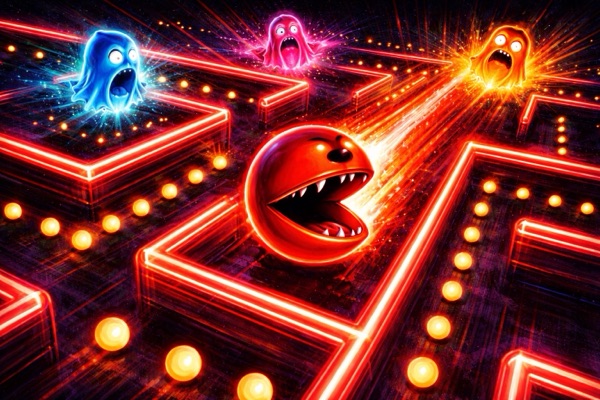
Neon Chomp
Study how minimal pixel art creates a compelling game. Every element is just a few colored squares — but it works.
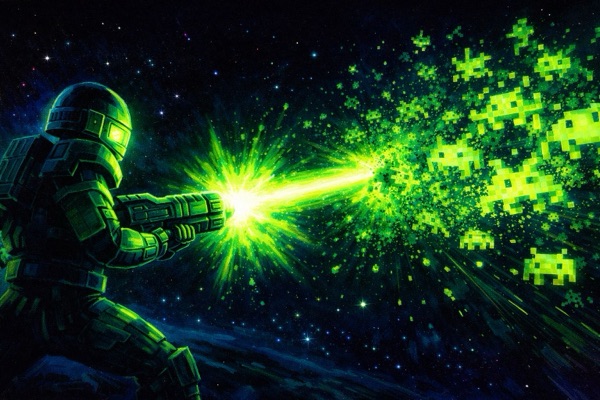
Pixel Blaster
Watch how particle effects and screen shake make pixel art feel dynamic and impactful.
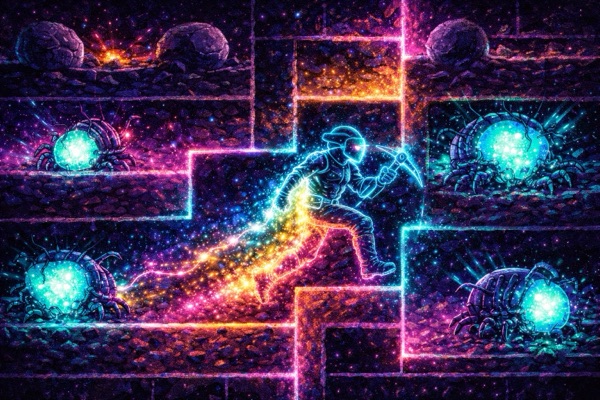
Neon Dig
Observe tilemap design in action — how repeating pixel art tiles create cohesive game worlds.
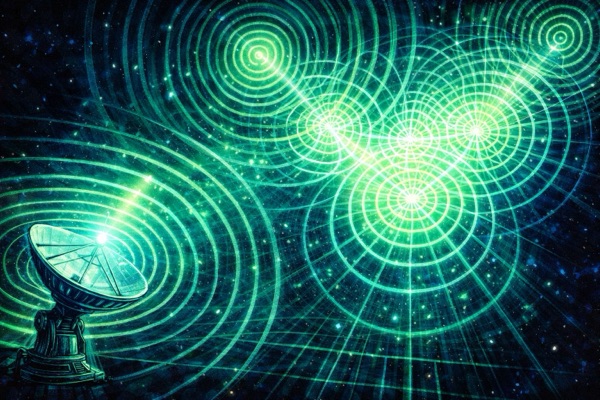
Signal Weaver
See how color and pattern communicate gameplay mechanics without text — pure visual design.
🎮 Study the Craft in Action
30+ games, each a pixel art case study. Play, observe, learn — then go create your own.
▸ Browse All Games